🎨 Chrome Customization · Browser Settings
How to Change Google Homepage Background in 2026
Google used to put a "Change background image" link in the corner of its homepage. You clicked it, picked a photo, and the plain white page turned into a beach or a skyline. That link is long gone, and the guides still telling you to look for it are out of date. What works now depends on what you mean by "homepage": the page at google.com, your browser's new tab page, or the page that opens when the browser starts.
How to change the Google homepage background
You can't set a custom picture on google.com itself, but you can change the background of your Chrome or Edge new tab page. In Chrome, open a new tab, click Customize Chrome, then choose a background or theme. In Edge, open a new tab, click the gear icon, and pick a background. Both take under a minute.
💡 Key distinction most guides skip: google.com is Google's page, and Google decides how it looks. Your new tab page belongs to your browser, and the browser lets you change it. These are two different things with two different solutions.
Option 1: Change the Chrome new tab background
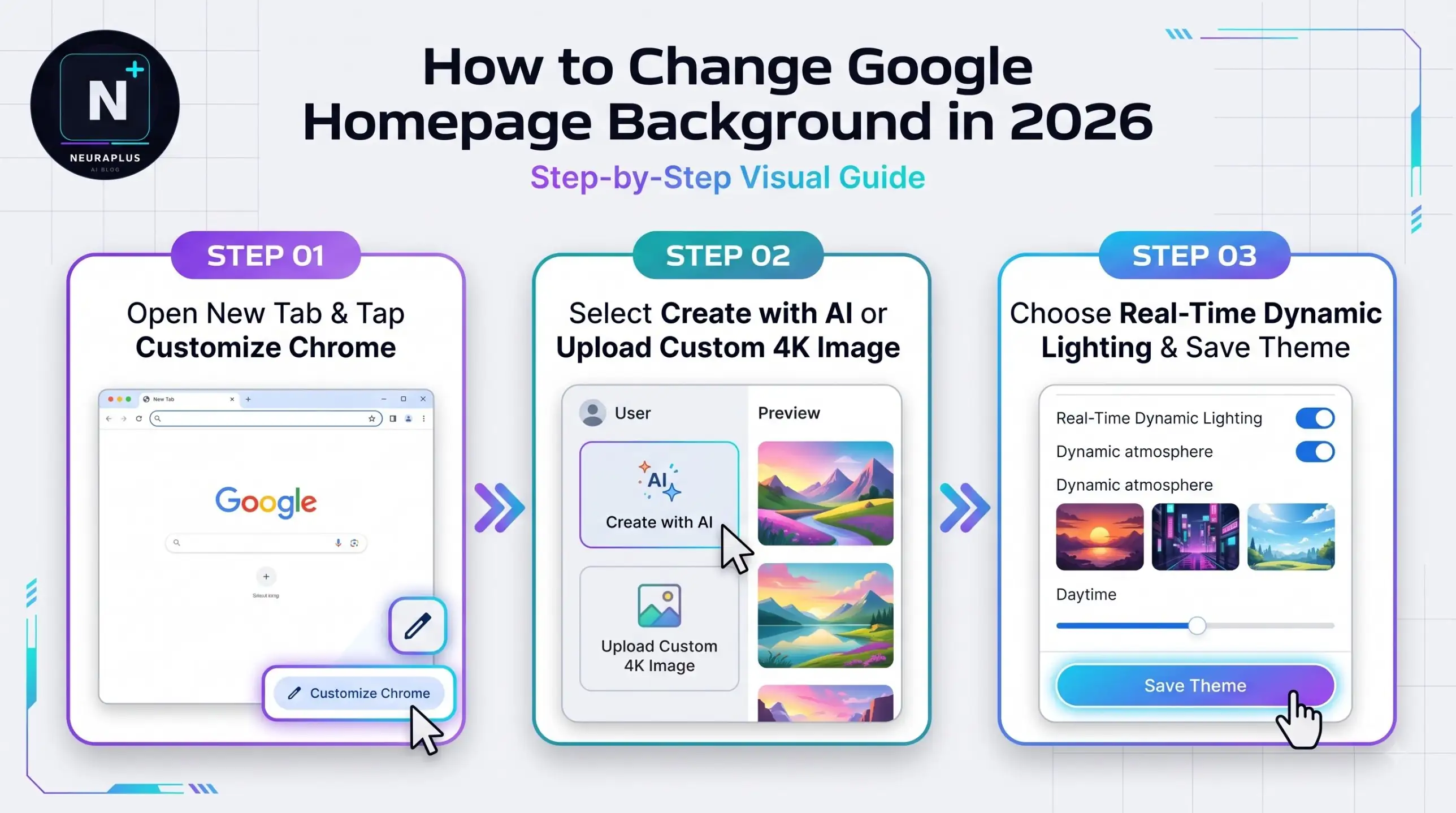
- Open a new tab in Chrome.
- Click Customize Chrome at the bottom right.
- Choose Change theme to pick from Google's collections, or Upload an image to use your own photo.
- Click Done.
Chrome's collections and menu labels change with updates, so if a button has moved, check Chrome Help for the current steps. What stays the same is the logic: the new tab page is the customizable one.
⚠️ What goes wrong: An uploaded photo looks stretched or blurry. Use an image at least as large as your screen, ideally 1920 by 1080 pixels or larger, and choose one where the middle of the frame isn't busy, because the search box and shortcuts sit there.
Option 2: Use a full Chrome theme
A theme changes more than the picture. It recolors the tab strip and the toolbar, so the whole window matches. You can browse themes in the Chrome Web Store, and if you like space artwork, the Google Chrome space themes guide shows how to install one and how to take it off again.
A theme is the better pick when you want a consistent look. A plain background image is the better pick when you want to change one thing without touching colors.
Option 3: Change the background in Microsoft Edge
Edge makes this easier than Chrome. Open a new tab, click the gear icon, and you'll see layout and background choices, including Microsoft's daily image or a color. If you want a personal photo, Edge's settings let you choose one from your device. Edge and Chrome both use the same underlying browser engine, but the new tab pages are separate products, so settings from one won't carry over to the other.
Option 4: Turn on dark mode for Google Search
If what you actually want is a dark Google page, there's a built-in way. Open Google Search settings, find the Appearance section, and choose Dark. It changes the look of Google Search results, not the homepage artwork, and it follows your account if you're signed in.
This doesn't replace a background image, but for a lot of people, it solves the real problem, which is a bright white page at midnight.
Which option should you use?
| Goal | Best Option | Effort | Changes google.com? |
|---|---|---|---|
| Pretty picture on new tabs | Chrome Customize Chrome | Low | No |
| Matching colors on the whole browser | Chrome Web Store theme | Low | No |
| Daily photo with no setup | Edge new tab page | Lowest | No |
| Dark page for Google results | Search settings, Appearance | Low | Results only |
| Fun, temporary effect | Mr.Doob-style tricks | Low | No, third-party page |
What about extensions that change google.com?
You'll find browser extensions that promise a custom background for google.com. Some are fine. Some collect your browsing activity or inject ads. If you try one, check four things before you click install: the developer's name, the number of users, the permissions it asks for, and how recently it was updated. An extension that wants permission to "read and change all your data on all websites" for a wallpaper is asking for far more than the job needs.
🛡️ My rule: If the extension needs more permissions than your new tab page does, skip it and use Chrome's built-in option. The risk of data collection isn't worth a pretty background.
If you want a playful change instead
Sometimes people search for a new Google background because they're bored of the white page, not because they need a permanent photo. In that case, a temporary effect fits better. The Google sphere trick spins the homepage into a ball, and the Google Underwater trick floats it in a fish tank. Both run on third-party pages, so they don't change your real homepage and they disappear when you close the tab.
For more ideas that don't need any setup, browse cool things to type in Google.
Common problems and fixes
| Problem | Cause | Fix |
|---|---|---|
| Customize Chrome button is missing | Older Chrome version or a managed browser | Update Chrome; on a work device, an admin may lock it |
| Background reverts after restart | Sync conflict or a profile issue | Sign in to Chrome, check sync, reapply the background |
| Image looks pixelated | Low-resolution file | Use an image 1920 by 1080 or larger |
| Background disappears on a new profile | Settings belong to each profile | Reapply it inside the new profile |
| Shortcuts cover the picture | Default shortcuts layout | Hide or reduce shortcuts in Customize Chrome |
A quick note on the browser start page
Some people mean something else by "homepage": the page that loads when you start the browser. That's a separate setting. In Chrome, you can choose to open the new tab page, continue where you left off, or open a specific page like google.com. If you set it to open google.com, you'll see Google's white page no matter what your new tab background looks like. If you want your custom background at startup, set Chrome to open the new tab page instead.
✅ Bottom line: The old "Change background image" link on google.com is gone for good. But Chrome's Customize Chrome, Edge's new tab settings, and Google's dark mode all give you clean, safe ways to escape the plain white page — no risky extensions required.
Frequently asked questions
Further reading
- Chrome Help – official steps for customization and themes.
- Chrome Web Store themes – browse official themes.