⚔️ Local LLMs · AI Tools · Comparison
Ollama vs LM Studio: Which Should You Use in 2027?
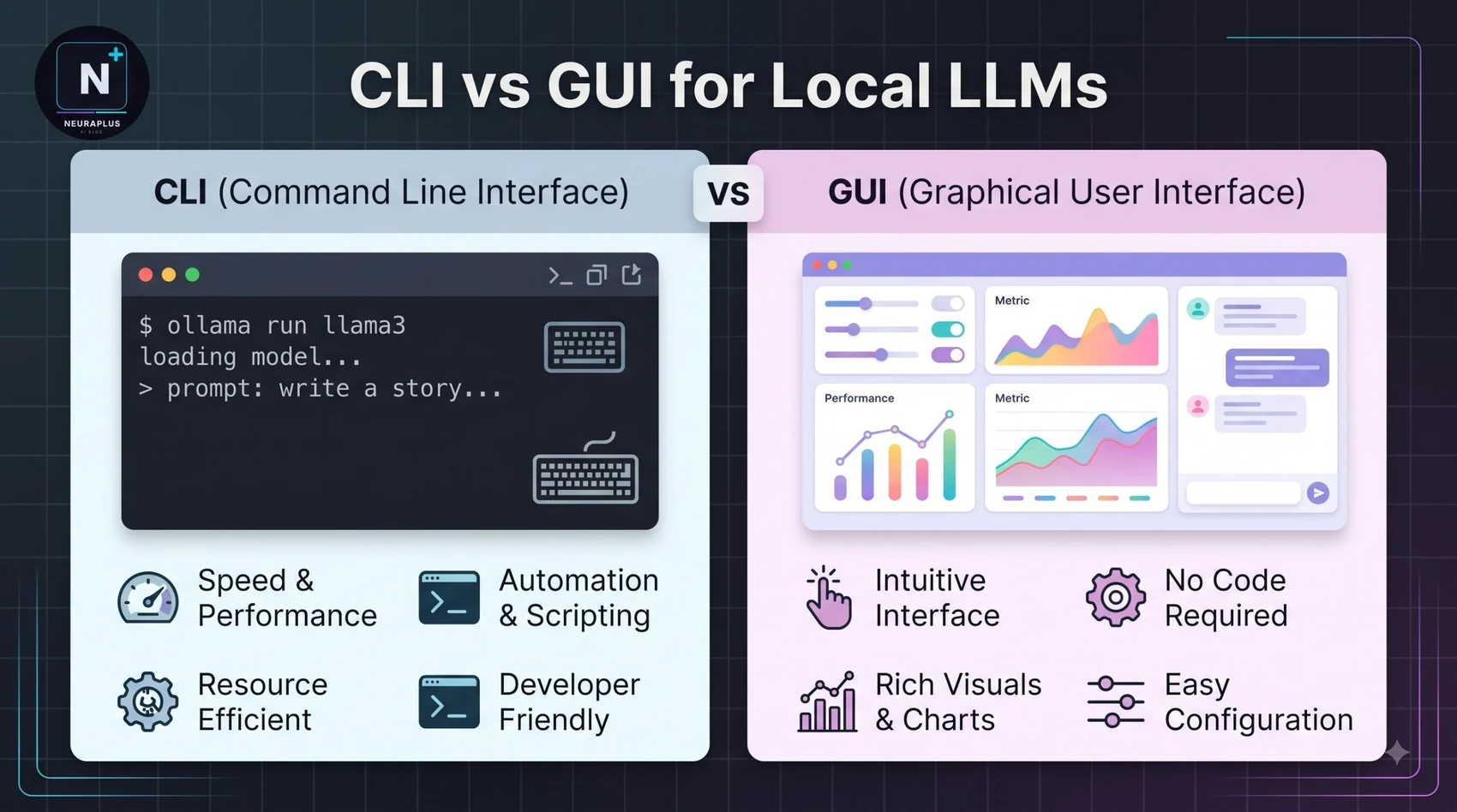
Both Ollama and LM Studio let you run language models on your own computer, and both are free to start with. The difference is how you work with them. Ollama is built around a command line and a background service. LM Studio is a desktop app with a model browser and a chat window. Picking the wrong one doesn't break anything, but it does decide whether the first hour feels easy or annoying.
Ollama vs LM Studio: the short verdict
Choose LM Studio if you want to click, browse models and chat in a window with no terminal. Choose Ollama if you're a developer, want to script things, or plan to connect other apps to a local model. You can install both, though they keep separate copies of models, which uses disk space.
✅ The default advice: If you've never run a local model, start with LM Studio. If you write code and want the model as a service your programs can call, start with Ollama. That holds for most people.
Side-by-side comparison
| Feature | Ollama | LM Studio |
|---|---|---|
| Main interface | Command line plus a tray app | Desktop app with a graphical interface |
| Learning curve | Low if you like terminals, moderate if not | Low for almost everyone |
| Model discovery | Pull by name from the Ollama library | Search and download inside the app, including Hugging Face |
| Chat UI | Basic in the terminal; apps add their own | Built-in chat window |
| Local server | Yes, default port 11434 | Yes, OpenAI-compatible, default port 1234 |
| Scripting and automation | Excellent | Good through the server |
| Custom model setup | Modelfile for prompts and parameters | Settings panel with sliders |
| Runs on Windows, macOS, Linux | Yes | Yes |
| Cost | Free | Free for personal use (check work terms) |
💡 A note on defaults: Defaults like ports and license terms can change between versions, so confirm them on each project's site before you rely on them.
How each one works
Ollama
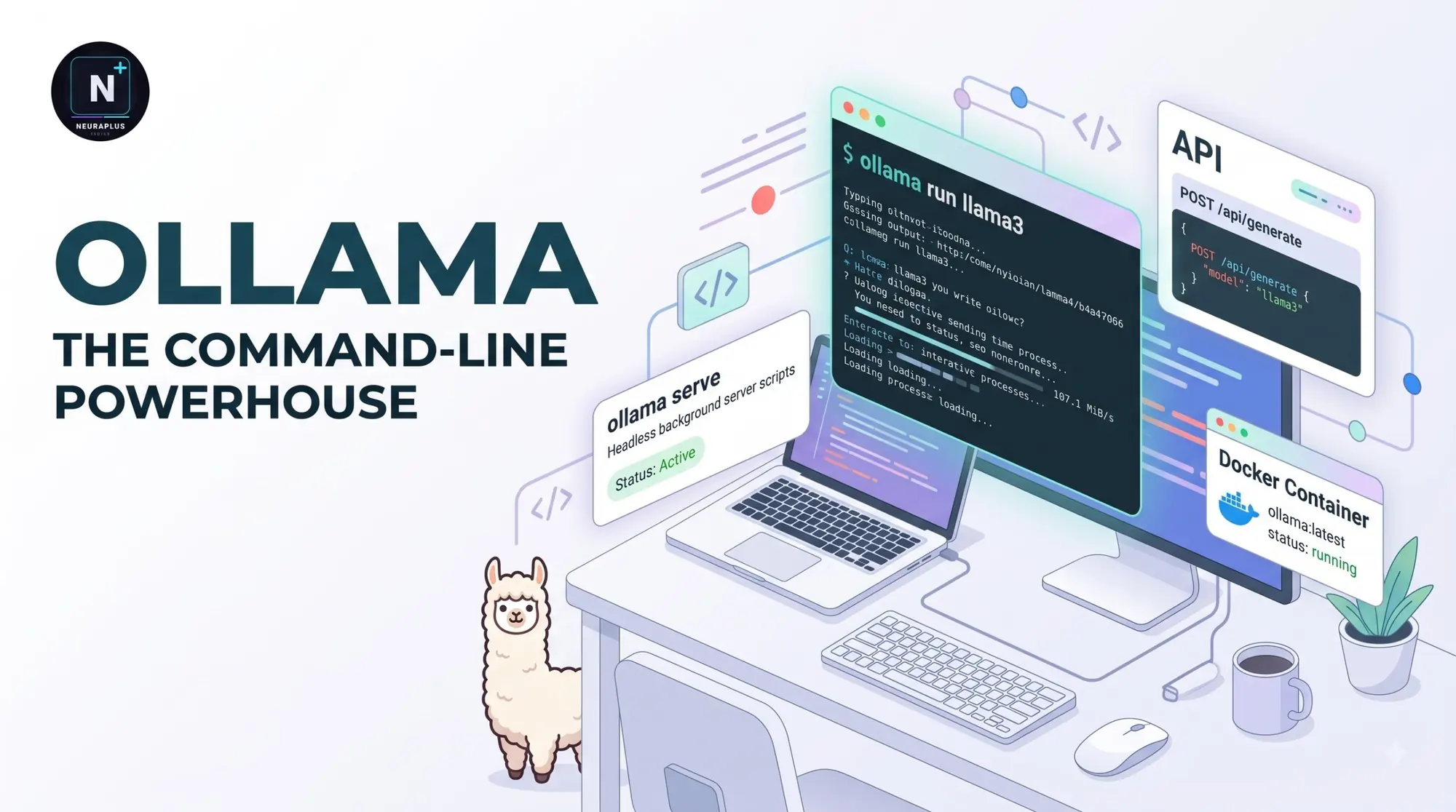
You install it, and it runs quietly in the background. You open a terminal and type something like ollama run llama3.2. The first time, it downloads the model, and then you're chatting. Every other tool that wants to use a local model can talk to the Ollama server on your machine.
Its strength is that it feels like a tool you can build on. A short command pulls a model, another lists what you have, and a third deletes one. If you've ever used Docker, the habits transfer. The walkthrough to install Ollama on Windows covers setup step by step.
LM Studio
You install a normal desktop app. Inside it, you search for a model, see its size and a note about whether your hardware can run it, click download, then switch to the chat tab. A settings panel lets you adjust things like context length and how much of the model is offloaded to your graphics card.
Its strength is visibility. You can see what's loaded, how much memory it uses and how fast tokens are generated, all without typing a command. For people who like to experiment with settings, that's a big advantage.
Which is easier to set up?
| Step | Ollama | LM Studio |
|---|---|---|
| Install | Run the installer | Run the installer |
| First model | One terminal command | Search, click and download |
| First chat | In the terminal | In the chat window |
| Change settings | Edit a Modelfile or set env variables | Move sliders in the app |
| Connect another app | Point it at the local server | Start the server in app, then point to it |
For a non-technical person, LM Studio is easier by a wide margin. For someone comfortable with a terminal, Ollama is slightly faster to get going.
Model support and storage
Both tools run popular open models in common quantized formats, and both can use your GPU when your hardware supports it. LM Studio's browser makes it easy to try many variants of the same model with different compression levels. Ollama's library is curated and simpler to browse, but you have less choice of individual files unless you import custom ones.
⚠️ One practical warning: They store models in different places and formats. If you install both and download the same model in each, you'll hold two copies. Large models run to many gigabytes, so on a small drive this adds up fast. Pick one for everyday use, and delete duplicates.
Performance
Speed depends far more on your hardware and the model size than on the app. Both tools use well-known inference engines under the hood, and on the same model and settings, you'll see similar speeds. Where they differ is in defaults: how much of the model sits on the GPU, how large the context window is, and how long a model stays loaded. A few seconds of difference is often just different defaults.
If one feels slow, check three things before blaming the app: whether the model fits in video memory, whether the context length is set very high, and whether another program is using your GPU.
Using them with other apps
Both offer a local server, so tools that expect an OpenAI-style API can talk to either. In practice, that means you can point a coding assistant, a note-taking app or your own script at localhost. Ollama runs its server automatically in the background. LM Studio requires you to start the server from within the app, which is a small extra step but gives you more visible control.
If your project might need to scale beyond your PC, you can switch the same code to a hosted provider later. The Groq API free limits guide shows one free hosted option with an OpenAI-compatible endpoint, so the same client code works with a changed base URL.
Who should pick which?
| You Are... | Pick | Why |
|---|---|---|
| A complete beginner | LM Studio | No terminal, clear model browser |
| A student exploring AI | LM Studio | Easy to try many models |
| A developer building an app | Ollama | Scriptable, always-on service |
| Someone automating tasks | Ollama | Simple commands, easy to script |
| A tinkerer who loves settings | LM Studio | Visual controls and stats |
| Running on a server or Docker | Ollama | Built for that workflow |
| Wanting both worlds | Both | Just watch your disk space |
Local or hosted: a reality check
Running a model locally gives you privacy and no usage limits, but a typical home PC can only run smaller models, and those are less capable than the largest hosted ones. If you're comparing options, the Claude free plan limits guide shows what a leading hosted assistant gives you for free, which might be enough for many tasks. And whichever route you pick, a well-built prompt matters as much as the model, so the Claude master prompt template is worth keeping handy. Smaller local models respond best to short, clear instructions.
Common problems
| Problem | Tool | Fix |
|---|---|---|
| Model too slow | Both | Use a smaller or more compressed model |
| Out of memory | Both | Lower the context length or choose a smaller model |
| Disk full | Both | Delete unused models; move the model folder |
| Can't connect another app | Both | Confirm the server is running and the port matches |
| GPU not used | Both | Update graphics drivers and check supported hardware |
Frequently asked questions
Further reading
- LM Studio – the official site for downloads, documentation and license terms.