🖼️ AI Super App · Images
How to Create Images with an AI Super App: Models, Prompts and Editing Tools
An AI super app puts image generation next to chat and editing tools, so you can write a prompt, generate, fix and upscale without leaving one account. This guide shows how to work through that, which models and tools Overchat lists, how it compares with other ways to make images and how to manage credits and rights.
✅ Short answer: Pick a model, write a prompt with subject, style, light and composition, generate a few versions, fix details with the editing tools, upscale the keeper and check the licence terms before commercial use.
Short answer: generate, edit, upscale in one place
The advantage of an all-in-one app is the workflow, not any single model. You can try the same prompt on different models and then use background removal or upscaling without exporting to another tool. For the bigger picture, see our AI super app overview.
Models and tools Overchat lists
- Image models: Nano Banana 2, Nano Banana 2 Pro, Seedream 5 Pro, GPT Image 2.5 and Qwen Image 2, per its page.
- Editing tools: text-to-image, face swap, object removal, background removal, upscaling and aspect-ratio changes.
- Image combiner: a July 2026 reviewer used it to merge two photos from a description. It accepts JPG, PNG and WEBP files up to 10 MB each, returns PNG with five aspect-ratio options and finished merges in under 30 seconds in that reviewer's use.
- Free plan: 100 credits a day with one image a day, per the vendor page.
Ways to make AI images compared
| Option | Price (as listed) | Image allowance | Note |
|---|---|---|---|
| ChatGPT | Free; Plus $20/mo | Plus adds expanded images | Image generation inside the chat |
| Mistral Le Chat | Free; Pro $14.99/mo | Free tier includes image generation | Web search included on free |
| Midjourney | Basic $10; Standard $30; Pro $60; Mega $120 | No free tier | Images only |
| Runway | Free tier with 125 one-time credits | One-time credit pool | Image and video tool |
| Overchat.ai | Free; Mini $15; Pro $29; Max $59; Ultra $119 monthly (vendor page) | Free: 1 image a day; paid plans use monthly credits (7,000 to 80,000) | Several image models plus editing tools and an image combiner; a review lists Pro at $14.99/mo, so check the live price |
Sources: an eWeek AI pricing cheat sheet dated June 29, 2026, Overchat's pricing page and reviews dated July 10 and October 26, 2026. Confirm on each vendor page.
A seven-step image workflow
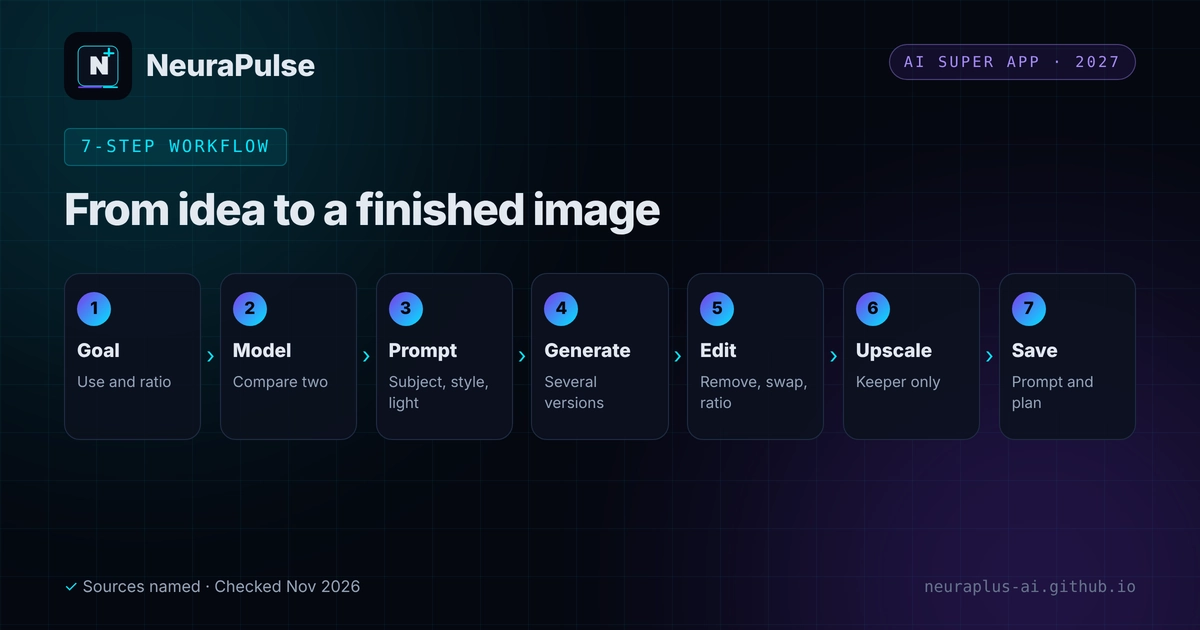
- Define the goal. A blog header, product mock-up or social post. Note the aspect ratio you need.
- Pick a model. Try the same prompt on two models and compare, since the app lets you switch.
- Write the prompt. Use the pack below.
- Generate several versions. Keep the best one, not the first one.
- Edit. Remove an object, swap the background or change the aspect ratio instead of regenerating.
- Upscale. Do it last, on the keeper only, so you do not spend credits on rejects.
- Save and record. Name the file, keep the prompt and note the plan and date.
A prompt pack you can copy
PRODUCT PHOTO
A matte black water bottle on a light grey studio surface,
soft window light from the left, shallow depth of field,
clean commercial photography, centred, space for text on the right.

BLOG HEADER
Flat illustration of a laptop and notebook on a desk, warm
colours, simple shapes, wide 16:9 composition, no text.

PORTRAIT STYLE
Candid portrait of a smiling barista in a cafe, natural light,
35mm photo look, soft background blur, realistic skin texture.
Change one element at a time, such as light or style, so you learn what each word does. For more patterns, see best prompts for image generation and how to make realistic AI images.
Credits, watermarks and rights
- Credits. We found no published credit cost per image, so make five test images and count what you spend.
- Watermarks. One reviewer reports watermark-free PNG output from the image combiner. Check your plan before publishing.
- Ownership. Overchat's page says users own what they create, including for commercial use. A review notes the company disclaims control over generated content.
- Faces and brands. Face swap and combiner tools raise consent and trademark issues. Do not use real people's likeness without permission.
For plan costs, read AI super app pricing and free plan. If you need watermark-free images specifically, see AI image generator without watermark and best AI image generator for blogs.
Fix common problems
- Odd hands or text. Regenerate with a simpler composition or add text later in a design tool.
- Wrong style. Name the medium first, such as "photo" or "flat illustration".
- Cluttered background. Use background removal or object removal.
- Wrong size. Use the aspect-ratio tool instead of cropping blindly.
- Soft detail. Upscale the final version only.
💡 Save credits: Test ideas at low cost on the free plan, then spend paid credits on the final version only.
How this guide was researched
Methodology and limits
- Model and tool lists come from Overchat's own page, which is a vendor claim. The image combiner details come from a Gadget Flow review dated July 10, 2026 by an unnamed contributor.
- Other tool prices come from an eWeek roundup dated June 29, 2026.
- The prompts are starting templates, not guaranteed results. We did not generate images in each tool for this article.
- Author: Prashant Lalwani. Last verified November 23, 2026.